
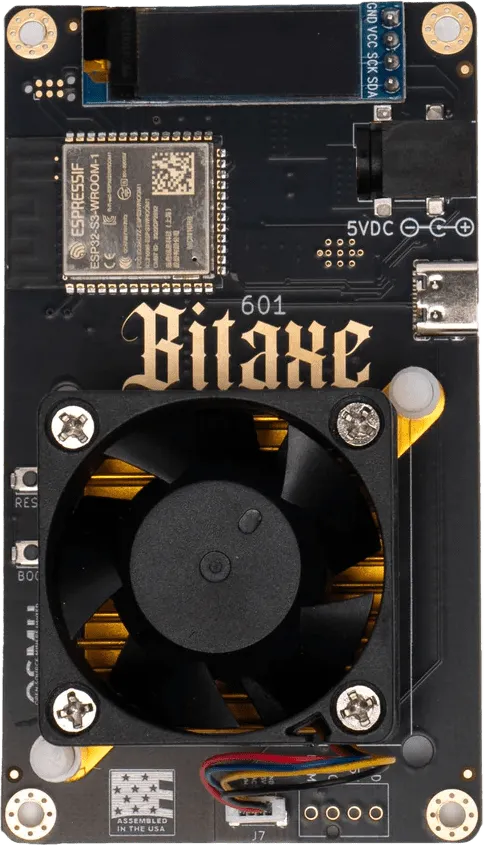
Bitaxe Setup Guide: AxeOS, Pool Settings and Firmware Updates
Short answer: To set up a Bitaxe, power it from a 5 V DC supply that can deliver more than 4 A, join the open Wi-Fi network it creates (named Bitaxe_ plus four characters) and open 192.168.4.1 in a browser to reach AxeOS, its built-in web interface. Enter your home Wi-Fi details, restart, then open AxeOS at the IP address shown on the screen and enter your pool’s stratum host, port and your Bitcoin address as the user. Leave frequency and core voltage at their defaults, and update firmware from the AxeOS Update page or the official Bitaxe web flasher.
This guide covers what happens after unboxing. For what a Bitaxe is and how solo odds work, see Bitaxe explained; for how the hardware generations differ, read Bitaxe models compared; if you are still choosing hardware, see NerdMiner vs NerdQaxe vs Bitaxe or browse our home and solo miners. The steps below come from the Bitaxe project’s own sources: the ESP-Miner firmware repository, the bitaxeGamma hardware repository and the OSMU wiki setup sheet. Menus can change between firmware releases.
1. Power supply requirements
The bitaxeGamma hardware repository sets out the power rules:
- 5 V DC only. The project warns that any other voltage will damage the board, and that many supplies with other voltages use the same plug.
- More than 4 A (20 W) without dropping below 5 V. The project notes this often means a supply rated for 25 to 30 W.
- Connector: a 5.5 × 2.1 mm barrel plug, center positive.
- Active cooling is required. The heatsink alone is not enough; the fan header takes a 5 V, 4-pin PWM fan.
The Bitaxe Gamma 601 in our store is listed at 17 W. Never use a 12 V adapter, even if the plug fits.
2. First boot and the Bitaxe Wi-Fi access point
- Plug in the supply and push the barrel plug all the way in.
- When the Bitaxe has no Wi-Fi network it can join, the firmware opens its own access point named Bitaxe_XXXX, where the last four characters come from the device’s MAC address. The screen shows the name, and no password is needed.
- Join that network from a phone or laptop. A setup page should open by itself; if it does not, browse to 192.168.4.1.
- Open the Network page, enter your Wi-Fi name (SSID) and password, save, then restart.
- The Bitaxe joins your network and shows its new IP address on the screen. Open that address from any device on the same network, or try http://bitaxe.local (bitaxe is the default hostname) if your network supports mDNS.
The board’s ESP32-S3 controller supports 2.4 GHz Wi-Fi only, according to Espressif, so choose a 2.4 GHz network. Older firmware put Wi-Fi and pool fields on one Settings tab; current AxeOS uses separate pages.
3. The AxeOS web interface
AxeOS is the web interface of ESP-Miner, the open-source firmware that runs on every Bitaxe. In current releases the menu includes Dashboard, Scoreboard, Swarm, Logs, System, Pool, Network, Settings and Update. The dashboard shows hashrate against expected hashrate, efficiency in J/TH, accepted and rejected shares (with rejection reasons), power, input voltage, ASIC frequency and voltage, ASIC and voltage regulator temperatures, and fan speed. Swarm manages several units on the same network.
4. Entering your pool: stratum URL, port, user and password
Open the Pool page. AxeOS stores up to eight pool configurations and lets you choose a primary pool and a fallback.
| Field | What to enter | Notes |
|---|---|---|
| Stratum Host | Hostname only, for example solo.ckpool.org | AxeOS rejects a stratum+tcp:// prefix or a :port suffix here |
| Stratum Port | The pool’s port, for example 3333 | Separate field |
| User | Your Bitcoin address, a dot, then a worker name (address.worker) | The worker name labels this device in the pool’s statistics |
| Password | x | The factory value; change it only if your pool asks you to |
The factory configuration for Gamma boards sets public-pool.io as the primary pool and solo.ckpool.org as the fallback, both on port 3333, with a placeholder Bitcoin address that is not yours. While that address is in use, AxeOS warns you to change the User field to your own address to receive mining rewards; do that in every pool slot you keep. AxeOS also offers Stratum V2 but notes that not all pools support it.
Pool-specific details are in our CKPool solo mining guide and Public Pool guide, and solo mining and lottery miners explains how solo payouts differ from shared pools. To see what 1.2 TH/s means for solo odds, try the solo mining calculator. A Bitaxe is a hobby device whichever pool you pick; Bitminers does not guarantee mining profitability.
5. Frequency and core voltage settings
Two values on the Settings page control the ASIC:
- Frequency (MHz) is the mining chip’s clock speed. A higher clock means more hashes per second, more power draw and more heat.
- Core voltage (mV) is the voltage supplied to the chip. Higher clocks generally need more voltage to stay stable, which adds power draw and heat.
ESP-Miner’s factory configuration for Gamma 601 and 602 boards is 525 MHz and 1,150 mV. AxeOS normally offers preset values in dropdowns; free entry is unlocked only by adding ?oc to the end of the settings URL, and AxeOS then warns that custom settings can cause damage and system instability. The ESP-Miner documentation adds that overclocking without extra cooling can overheat or damage a Bitaxe, and the bitaxeGamma notes say the Gamma overheats much more easily than earlier boards, especially with the stock heatsink and fan.
Before you change anything, read our warranty policy. Its exclusions include “Unauthorized modifications or repairs” and “Overclocking or improper firmware adjustments”. If you are unsure whether a change is covered, contact us first. Our guide to ASIC miner firmware explains tuning trade-offs in general.
6. Firmware updates: AxeOS OTA and the Bitaxe web flasher
Over the air from AxeOS
- Open Update. It shows the installed version and can check GitHub for the latest release.
- Download esp-miner.bin from the ESP-Miner releases page, select it under Update Firmware and upload it. Do not disconnect power while the update is applied.
- The same page lists the installed firmware partitions and lets you activate the other one, which is how you roll back.
Current releases build the AxeOS interface into esp-miner.bin, so a separate www.bin is only needed for a custom interface.
Over USB with the Bitaxe web flasher
The official Bitaxe web flasher writes a complete factory image over USB from your browser:
- Use a Chromium-based browser such as Chrome, Edge or Brave; the flasher requires one.
- Power the Bitaxe from its barrel jack and connect its USB-C port to your computer.
- Click Connect and choose the device’s serial port.
- Select the model (Gamma), the board version (601 or 602) and the firmware version.
- Click Start Flashing, wait until it finishes, then reset the device.
Factory images are built per board version (601 or 602 in the file name), so match the number on your board. A factory image resets the device to factory settings; the flasher also offers a Keep configuration option. If the board is not detected, ESP-Miner notes that some Bitaxe versions cannot connect directly to a USB-C port and suggests a USB-A adapter.
7. Temperature and fan monitoring
Automatic fan control is on by default, with a target temperature and minimum fan speed on the Settings page; a fixed fan speed triggers the warning “Danger: Could Cause Overheating”. The dashboard flags high temperature and low input voltage.
The current ESP-Miner source also has an overheat safe mode: if the ASIC passes 75 °C or the voltage regulator passes 105 °C, the firmware stops mining, runs the fan at 100%, waits for the board to cool, then restarts with frequency lowered by 100 MHz and core voltage by 100 mV. If that keeps happening, improve airflow and reset frequency and voltage before using Disable Overheat Mode, as AxeOS advises.
8. Common problems
- Connected to Wi-Fi but no hashrate: ESP-Miner reports that some routers block mining, naming ASUS and some TP-Link models. Turn off AiProtection and IoT features, then recheck the stratum host and port.
- Low voltage warning or random restarts: the supply is sagging under load. Use one that holds 5 V above 4 A.
- Bitaxe_ network appears again: the unit could not join its saved network. Check the SSID, password and 2.4 GHz band.
- Interface broken after a custom web UI upload: open http://(device IP)/recovery to switch back to the built-in AxeOS.
Frequently asked questions
What is AxeOS on a Bitaxe?
The browser-based interface of ESP-Miner, the open-source Bitaxe firmware, used on your local network for Wi-Fi, pool, ASIC and update settings.
What is the default AxeOS IP address?
192.168.4.1 while you are connected to the Bitaxe’s own access point. Once it joins your network, use the IP address on its screen, or http://bitaxe.local where mDNS works.
Do I need the web flasher to update Bitaxe firmware?
Not for routine updates, which you upload as esp-miner.bin in AxeOS. The web flasher writes a full factory image over USB, useful for recovery or a factory reset.
Which factory image fits a Bitaxe Gamma 601?
For USB flashing, use the factory image with 601 in its file name. For AxeOS updates, the esp-miner.bin file is the same for all boards.
Should I overclock a Bitaxe Gamma?
Start with the factory settings. Overclocking raises heat and power draw, the project warns it can damage the board, and our warranty excludes it.